WETSET FAQ
What is WETSET?
WETSET is a comprehensive European data index designed to centralize information on wetland datasets from european, national, and regional databases. It aims to streamline research and assessment efforts by providing a central platform for accessing diverse wetland data.
What is the purpose of WETSET?
The main purpose of WETSET is to address the challenges researchers, conservationists, and managers face in efficiently locating and utilizing necessary data for wetland research projects, which often come from various sources with different structures, formats, languages, standards, and access protocols. Ultimately, WETSET aims to foster informed decision-making and contribute to the sustainable future of European wetlands.
Who can use WETSET?
WETSET is openly accessible to all relevant stakeholders, including researchers, conservationists, managers, and policymakers. Anyone can list available datasets.
What kind of data can I find on WETSET?
The platform contains a total of 242 datasets related to wetlands, peatlands, and floodplains, as well as other non-wetland-specific datasets relevant for wetlands research activities (e.g., Copernicus Land Monitoring Service). The datasets are from various sources, including international, European, national, and regional databases.
Are the datasets available for download directly from the website?
WETSET primarily functions as an index. Datasets only store metadata, with the actual data hosted on other platforms. You can directly access the dataset through its provided link.
Using WETSET
Do I need an account to use WETSET?
No, you do not need to be a registered user to access and browse the dataset list and details. However, certain functionalities, such as creating new datasets, editing existing ones, or leaving comments, require a user account.
How can I find a specific dataset?
You can find datasets by:
- Regularly scrolling through the dataset list
- Using the search bar to look for a specific dataset
- Applying filters based on properties like dataset type, producer, publisher, topic, and location
How can I contribute a new dataset?
Any registered user can register a new dataset. Registered users can submit draft versions that need to be reviewed and validated by a Data Manager or Admin before they are published.
Do I need to upload my dataset to WETSET?
No, you do not need to upload the actual data files to WETSET. The website is designed as a data index, which means it centralizes information about datasets rather than hosting the data itself.
When you add a new dataset, you are creating a dataset characterization. This involves filling out a form with key metadata such as the title, publisher, spatial and temporal extent, and a link to where the data can be accessed. The platform then acts as a central hub, allowing researchers and other stakeholders to easily find and understand the data's relevance without having to search multiple, dispersed sources.
Is there a help section available?
Yes, users can refer to a Contact section to make suggestions, report bugs, or ask questions about the platform. There is also a dedicated Help page.
I found an issue with the website or a dataset. How do I report it?
Each dataset has a comment section where registered users can suggest and discuss modifications. You can also use the Contact page to report bugs, ask questions, or make suggestions.
Using the WETSET Map
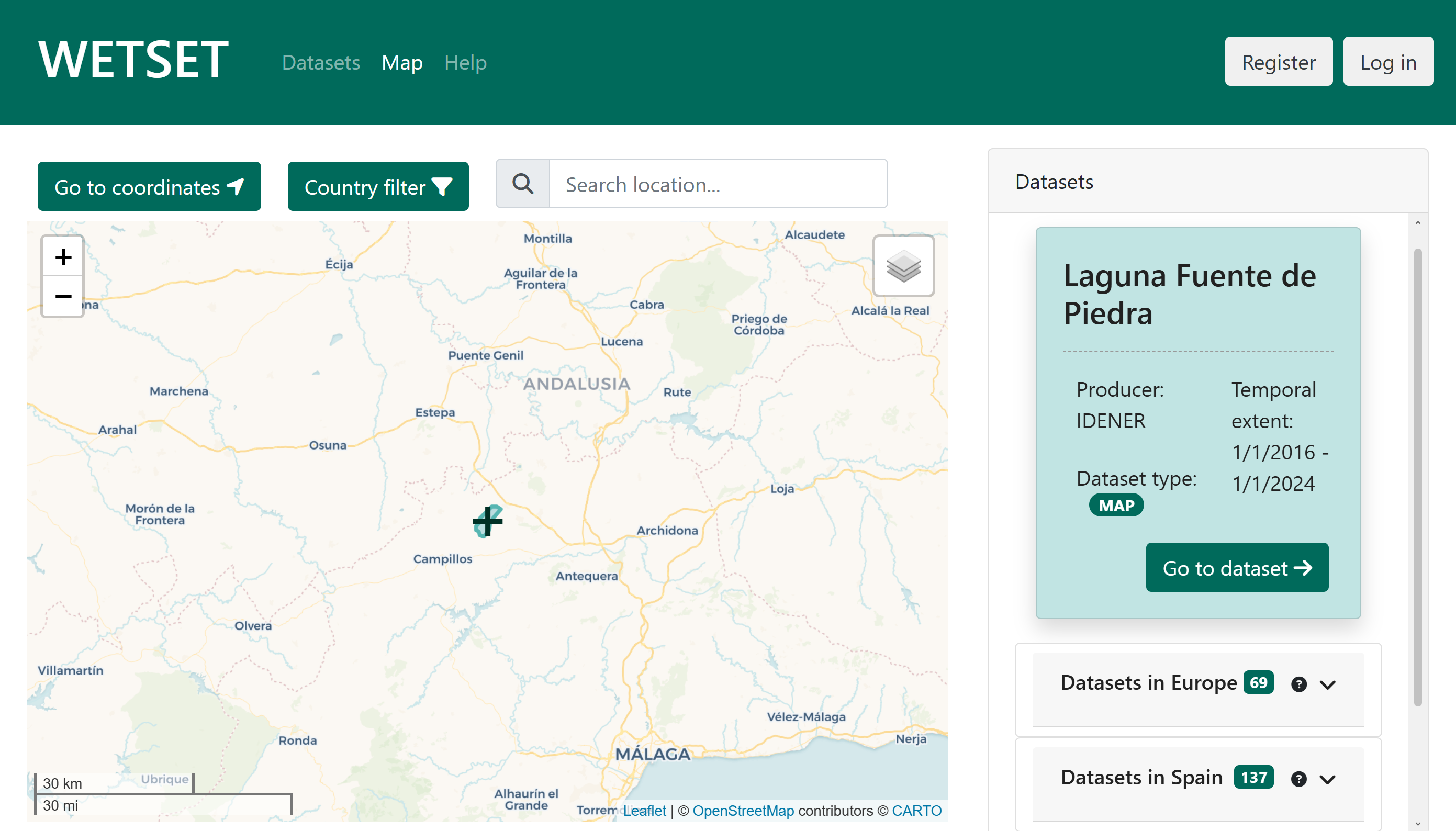
The WETSET Map is an interactive tool that lets you explore wetland datasets geographically. As you pan and zoom the map, the dataset panel on the right updates automatically to show datasets relevant to the area currently in view.
The map view
The map displays datasets as markers (for point locations) or coloured polygons (for datasets with a defined spatial boundary). Clicking a marker or polygon highlights the corresponding entry in the dataset panel. You can switch between four open base map styles using the layer control in the top-right corner of the map:
- Default – a humanitarian style based on OpenStreetMap HOT, selected by default for clear overlay visibility.
- OpenStreetMap – the standard detailed street and place map.
- Topographic – terrain-focused mapping with elevation context.
- Sentinel-2 imagery – cloudless satellite imagery for land-cover and wetland context.
European Wetlands layer
The layer control also exposes the European Wetlands overlay. When enabled, this layer renders a semi-transparent wetland map derived from the REWET project tile set directly on top of the base map, providing immediate spatial context for the datasets listed in the panel. You can toggle it on or off at any time without affecting the dataset list.
Dataset panel
The panel on the right-hand side of the map is divided into up to four sections, each updated whenever the map is moved:
- Datasets – datasets whose geographic coordinates or spatial polygon fall within the current map viewport.
- Datasets in <Country> – datasets that cover, or were produced in, the country detected at the centre of the map. A Local Datasets toggle lets you narrow this list to datasets produced exclusively within that country.
- Datasets in <Continent> – continental-scale datasets that include at least one country-level coverage entry.
- Other Datasets in <Continent> – continental datasets without a declared country coverage, shown separately to keep the main lists focused.
Click Go to dataset on any card to open the full dataset detail page.
Search location
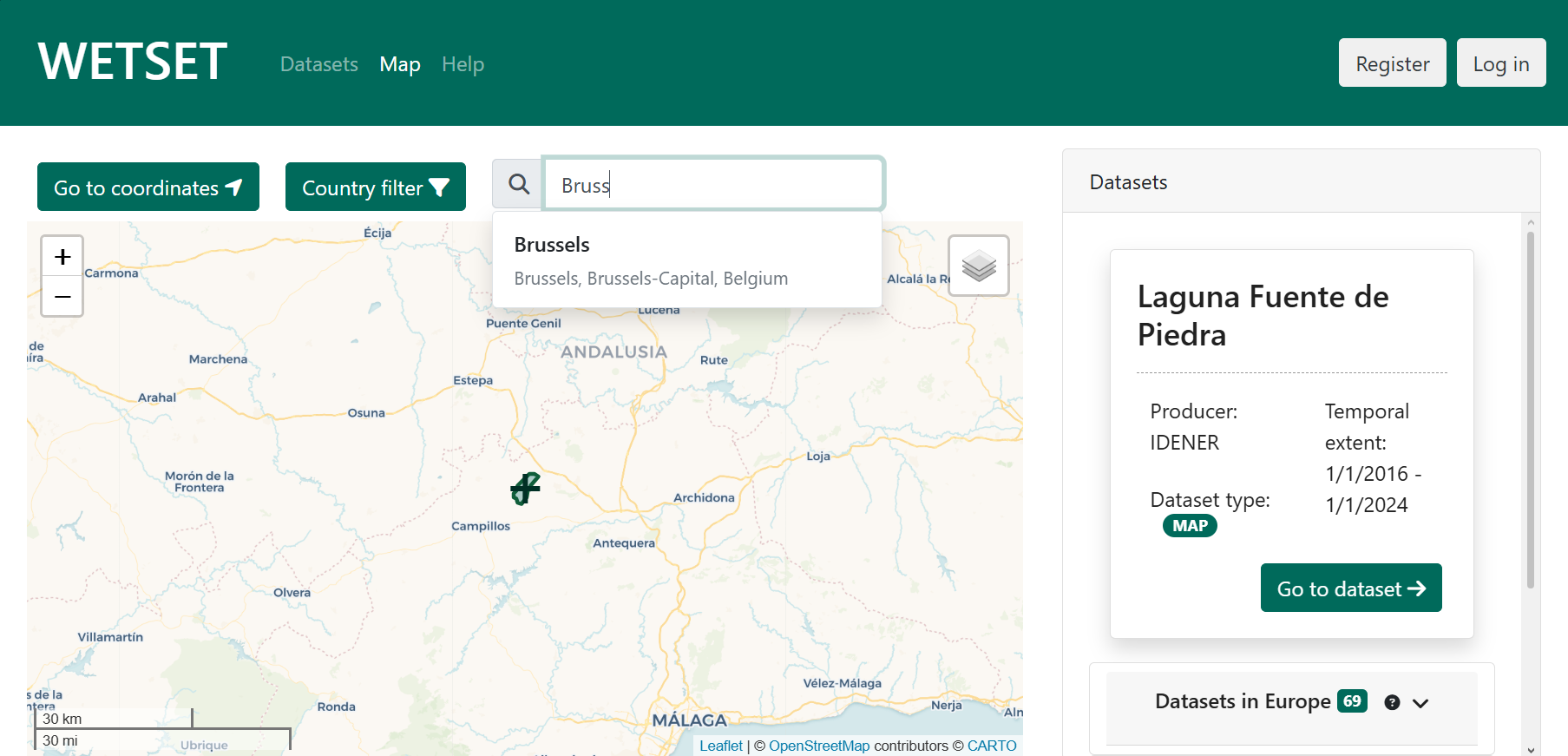
The search bar at the top of the map lets you navigate to any named place. Type at least three characters and a drop-down will appear with matching results. Selecting a result recentres the map on that location. If no matches are found, try a more specific or differently spelled search term.
Go to coordinates
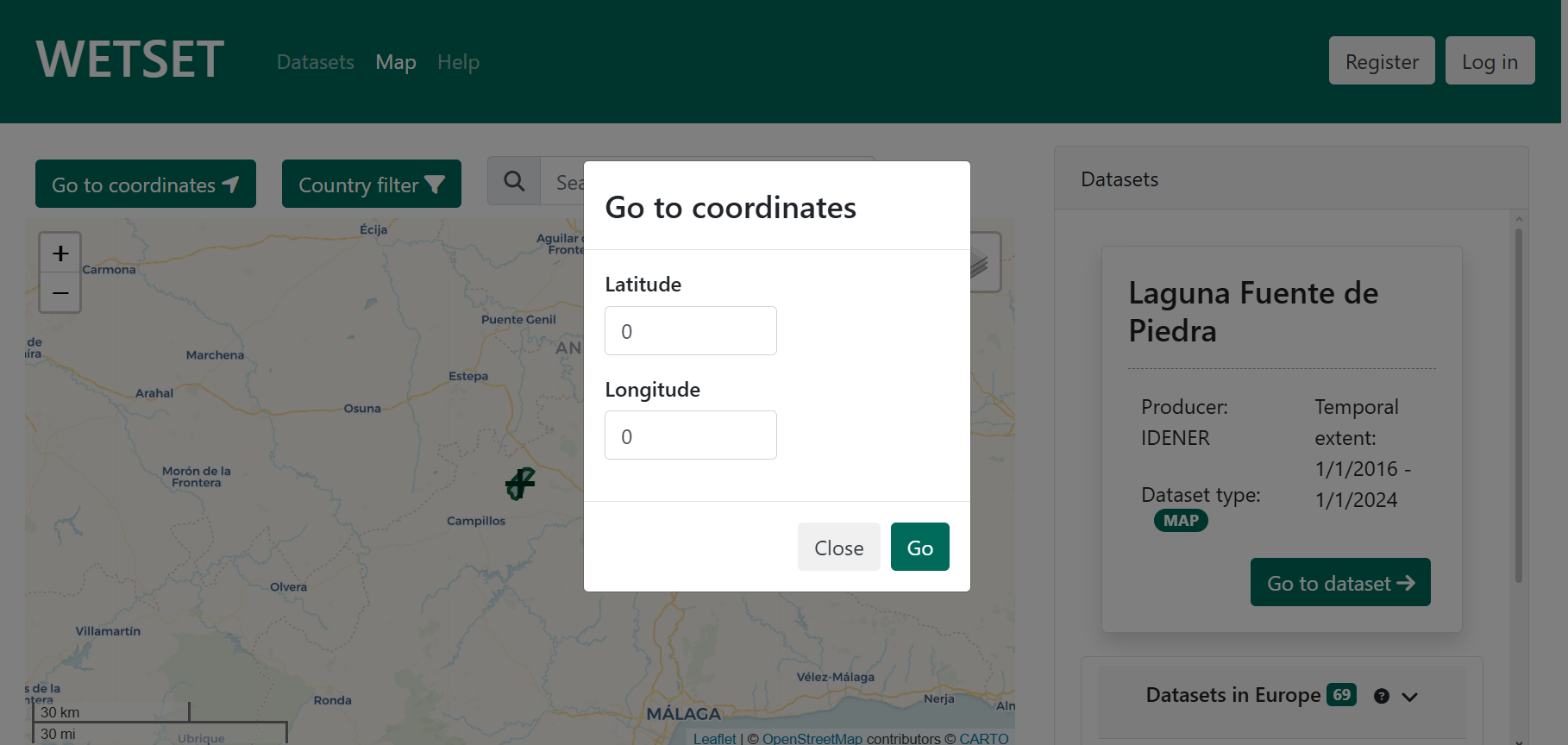
Click the Go to coordinates button to open a dialog where you can enter an exact latitude (−90 to 90) and longitude and jump directly to that position on the map. This is useful when you already know the geographic coordinates of the area you want to investigate.
Country filter
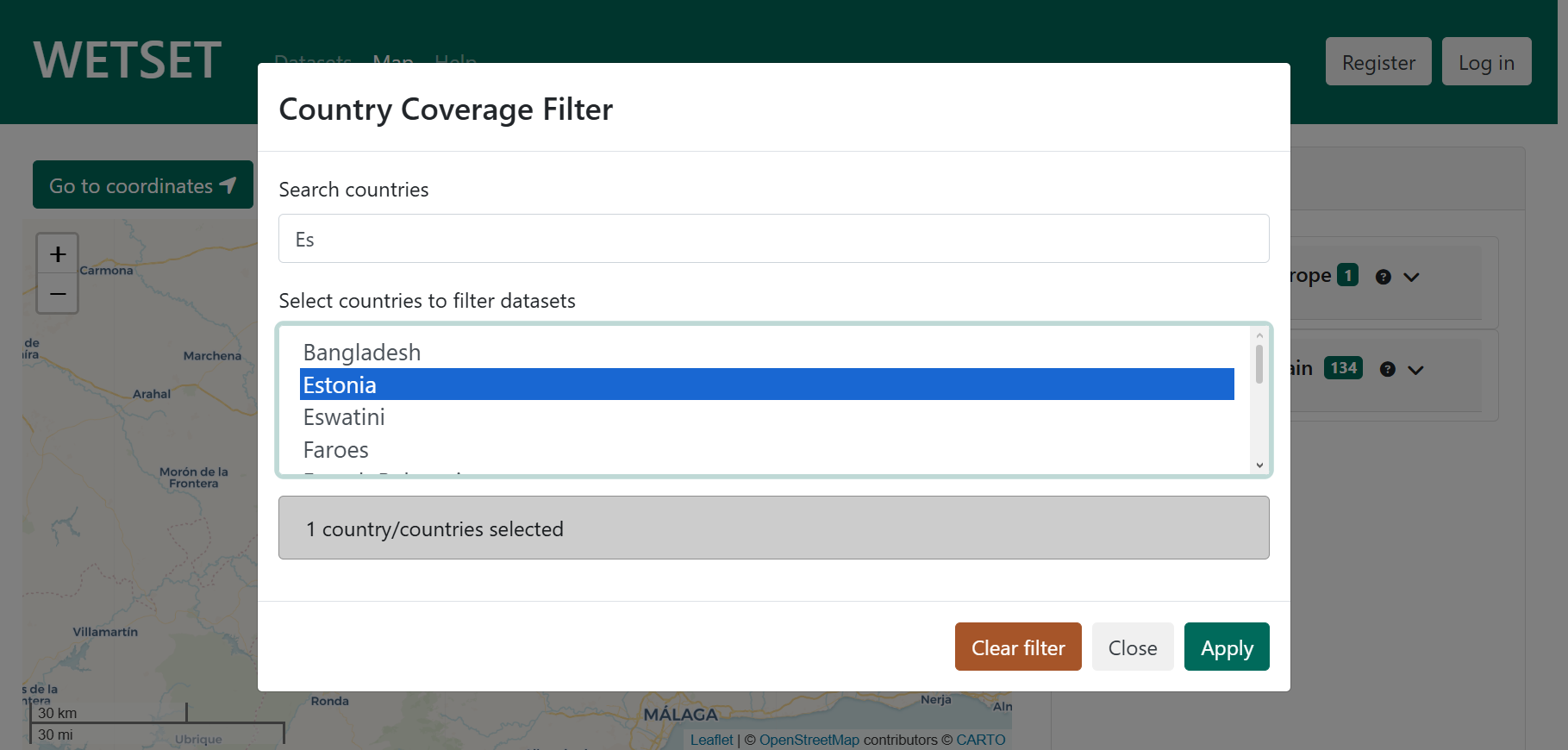
The Country filter button opens a dialog that lets you restrict the dataset panel to datasets that cover one or more specific countries. You can type in the search box to find countries quickly, then select one or more from the list. Once applied, the button turns green and displays the active selection. Click Clear filter to remove the restriction and return to the full dataset view.
Contact
In case of technical difficulties, please contact our support team at joseluis.delpino@idener.ai for assistance.